Integrate BigBlueButton with Fedena: Complete Setup Guide
Introduction
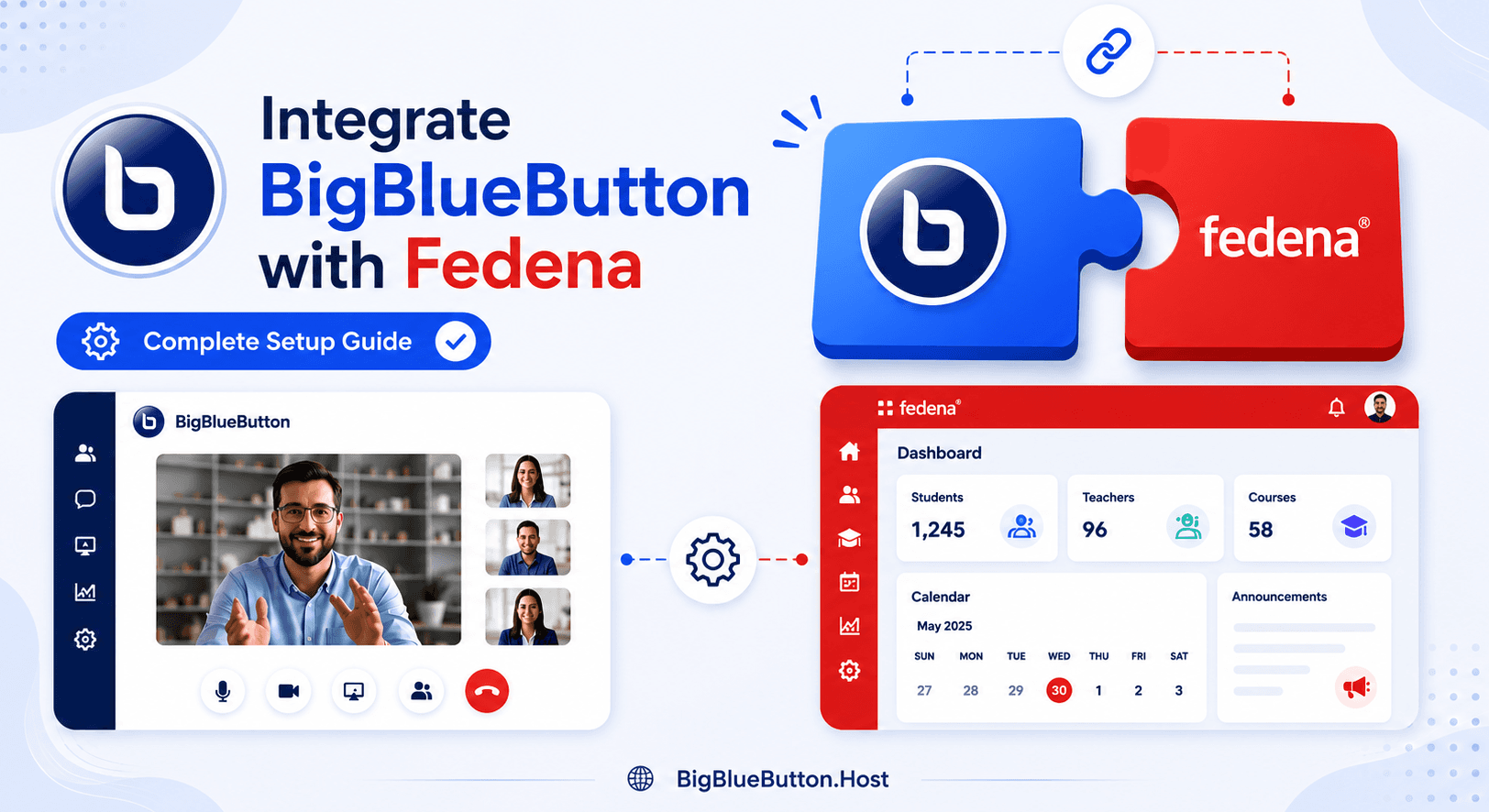
Fedena can be extended with BigBlueButton (BBB) to run live virtual classes directly from the platform. Once configured through the Collaborate module, administrators can manage BBB servers and instructors can use video conferencing in the learning workflow.
What This Integration Enables
After successful setup in Fedena, you can:
- Connect Fedena to one or more BBB servers
- Launch video-conference sessions from within the LMS context
- Manage conferencing infrastructure from admin settings
- Scale classroom delivery without changing learner workflow
Prerequisites
Before configuration, ensure:
- Fedena admin access
- BigBlueButton service ready (self-hosted or managed)
- Valid BBB endpoint credentials already available
- HTTPS-enabled BBB endpoint and trusted SSL certificate chain
- Network connectivity from Fedena host to BBB
If your organization already uses BBB with other LMS platforms, reuse the same credential and governance standards where appropriate.
Step 1: Enable and Open Collaborate Module
In Fedena:
- Log in as Admin
- Open Collaborate module (under More)
- Confirm the video-conference/collaboration feature is enabled
The Collaborate area is where BBB server connections are configured.
Step 2: Add BigBlueButton Server in Fedena
From Collaborate settings:
- Click Server
- Open New Server
- Provide:
- Server name
- BBB server URL/domain
- BBB shared key/secret field value required by your Fedena version
- Save configuration
Saved BBB servers should appear in the server list on the Collaboration page.
Step 3: Validate the Integration End-to-End
Run a quick production-like test:
- Open a test class/course context
- Start a video-conference session from an authorized account
- Join with a second user account
- Verify audio, video, and join permissions
- End session and confirm expected return behavior
This confirms the server mapping and role-based access are working.
Multi-Server and Scale Planning
Fedena can benefit from clear server planning as usage grows:
- Use naming conventions for region/campus/server type
- Track which cohorts map to which BBB backend
- Monitor concurrency and session quality during peak periods
- Keep a fallback server for maintenance windows
If your team wants faster rollout with lower infrastructure operations effort, managed BBB hosting can be a practical option while preserving the same Fedena-side configuration flow.
Troubleshooting Common Issues
If Fedena does not connect to BBB or conferences fail:
- Recheck server URL format in Collaborate -> Server settings
- Re-enter secret/key carefully (no hidden spaces)
- Verify BBB endpoint SSL certificate validity
- Confirm outbound firewall and proxy rules from Fedena
- Test with a clean browser and separate admin/instructor accounts
If the server saves but meetings still fail, test BBB endpoint health independently and review Fedena application logs for connection/auth errors.
Security and Operations Best Practices
For stable long-term operation:
- Restrict access to Fedena server settings to trusted admins
- Rotate BBB credentials using a controlled change process
- Keep Fedena and integration components updated
- Use staging to validate changes before production
- Monitor meeting reliability and resource usage trends
FAQ
Where is BBB configured in Fedena?
In the Collaborate module, under Server settings.
Can I connect more than one BBB server?
Yes, depending on your Fedena setup and operational model, multiple servers can be configured and managed.
Why does video conference not start after saving server details?
Most commonly due to incorrect URL/secret values, SSL trust issues, or blocked network paths.
Is managed BBB hosting compatible with Fedena integration?
Yes. Fedena integration is compatible with both managed and self-hosted BBB as long as endpoint configuration is valid.
Conclusion
Integrating BigBlueButton with Fedena is straightforward once the Collaborate module is configured correctly and server details are validated with real user testing.
This approach gives institutions a scalable virtual-classroom workflow inside Fedena, with the flexibility to run self-hosted or managed BBB infrastructure according to operational needs.
About BigBlueButton Host
Thanks for reading this post on Integrate BigBlueButton with Fedena: Complete Setup Guide. At BigBlueButton Host, we help teams, schools, and training organizations run dependable BigBlueButton infrastructure with practical guidance, clear deployment paths, and real-world operational support.
Related Articles
Deploy BigBlueButton Today
Get your own fully managed BigBlueButton server up and running in minutes. No technical expertise required.