Virtual Classroom Best Practices: The Ultimate Guide for Engaging Online Sessions
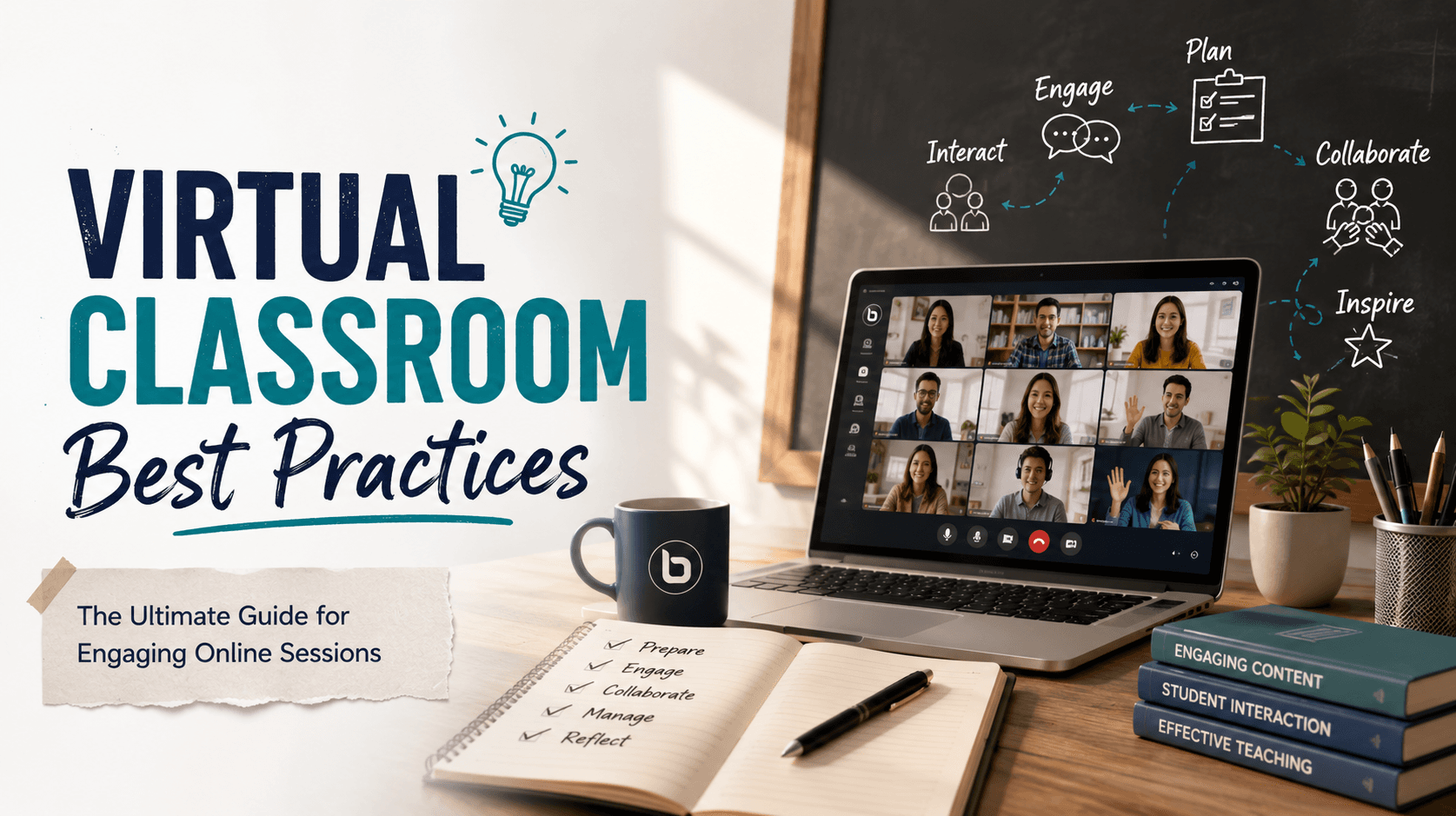
Virtual classrooms have redefined how we teach and learn, but running a successful live session requires more than just launching a video feed. Treating a virtual class like a corporate meeting often leads to student disengagement, technical distractions, and screen fatigue.
To create an active, collaborative environment, educators must adjust their pedagogical approach and utilize tools designed specifically for teaching.
This guide details the best practices for virtual classrooms across three critical phases—preparation, active engagement, and management—and compares popular platforms to help you choose the best fit for your learning programs.
1. Preparation: Setting the Stage Before the Session
A successful online class begins long before the first student logs in. Eliminating friction before the class starts lets you focus entirely on teaching.
Technical & Environmental Checklists
- Use a Headset: Always use a headset or dedicated microphone rather than your computer's built-in mic. This prevents echoes and filters out background noise.
- Browser Compatibility: For platforms like BigBlueButton, encourage students and teachers to use the latest versions of Google Chrome or Mozilla Firefox for optimal audio/video streaming quality.
- Lighting and Camera Angle: Ensure your light source is in front of you, not behind. Position your camera at eye level to create a natural, face-to-face connection.
Optimizing Class Materials
- Convert Slides to PDF: If you are uploading presentations to your virtual classroom, save them as PDF files first. BigBlueButton renders PDFs much more reliably and faster than complex PowerPoint slides.
- Upload Early: Upload your slides, documents, or video links 10–15 minutes before the session starts so you don't waste class time waiting for uploads.
Student Onboarding
Don’t assume students are automatically comfortable with your virtual classroom interface.
- Send a short, 2-minute overview guide or video tutorial before the first session.
- Spend the first 5 minutes of your introductory class helping students find the chat, shared notes, and status emojis.
2. Engagement: Keeping Learners Active
The biggest threat to virtual learning is passive listening. To keep students focused, use interactive tools to recreate physical classroom dynamics.
Active Learning and Collaboration
- Interactive Polling: Use instant polls to check for understanding throughout your lecture. This encourages participation from introverted students and provides immediate feedback on who is following the lesson.
- Multi-User Whiteboard: Instead of presenting static slides, activate the multi-user whiteboard. Invite students to solve problems, brainstorm ideas, or annotate diagrams together in real-time.
- Breakout Rooms: Split large classes into smaller groups of 3–5 students for collaborative exercises or peer reviews. This mimics real-world table discussions and boosts peer-to-peer engagement.
Building Rapport and Community
- Warm Welcome & Status Emojis: Greet students as they arrive. Start the session with a quick check-in using emoji statuses (e.g., "Thumbs Up" or "Happy") to gauge the class mood.
- Embrace the Silence: When asking a question, give students 10–15 seconds to reply. Online processing and typing response times take longer than in-person speech. Don't rush to fill the quiet gap.
- Manage Webcam Reluctance: If students prefer to keep their cameras off due to privacy or bandwidth limitations, don't force them. Instead, monitor engagement through chat, shared notes, and interactive polls.
3. Management: Maintaining Structure and Control
Managing 30 virtual students requires structured controls to limit distractions while keeping the session secure.
Moderator Lock Settings
Using specialized teaching platforms like BigBlueButton allows you to toggle permissions dynamically.
- Lock Webcams & Microphones: During lecture-heavy segments, use moderator lock settings to prevent students from unmuting themselves or sharing webcams. Open these permissions during discussion periods.
- Limit Private Chat: If students are getting distracted, lock private chat so they can only message the instructor.
Layout Management
- Enforced Layouts: Use the layout manager to push specific views to all participants. For example, focus their screens on the shared presentation during a lecture, and switch to a grid webcam view during class discussions.
Chat & Notes Management
- Utilize Shared Notes: Create a collaborative text document inside the session for the class agenda, homework assignments, or key takeaways.
- Moderate Public Chat: Clear the public chat when transitioning to a new topic to keep the conversation feed clean and relevant.
4. Platform Comparison: Choosing the Right Virtual Classroom
Different video tools serve different purposes. Selecting the wrong platform can hamper your pedagogical goals.
| Feature / Goal | Zoom | Microsoft Teams | BigBlueButton |
|---|---|---|---|
| Primary Focus | General corporate meetings | Team collaboration & enterprise hub | Purpose-built online teaching |
| LMS Integration | Basic plugin integration | Strong ecosystem integration (MS 365) | Native, deep LMS integration |
| Interactive Tools | Standard whiteboard, polls | Shared office docs, basic polls | Multi-user whiteboard, live analytics, engagement tracking |
| Best Suited For | Quick video calls & business meetings | Large institutions on Microsoft 365 | Schools, tutoring businesses, online training programs |
While platforms like Zoom and Microsoft Teams are excellent for standard business meetings, they require third-party plugins or complex setups to support specialized teaching workflows. BigBlueButton stands out because it is designed specifically for classrooms, including native learning tools and deeper integrations with LMS solutions like Moodle, Canvas, and WordPress.
For a detailed analysis, check out our guide on BigBlueButton vs Zoom: A Comprehensive Comparison.
5. Post-Session Reflection and Analytics
Learning doesn't end when the call closes. Instructors and administrators can use post-session data to continuously improve teaching quality.
- Review Session Summaries: Examine engagement analytics to see who participated actively and who fell behind.
- Assess Recording Archives: Use automatic recordings to review your pacing, clear explanation style, and interactive segments.
- Learn More: To maximize the benefits of customizable classrooms, read our post on Boost Online Learning with a Customizable Virtual Classroom and discover how you can find the Best Virtual Classroom Platform for Online Teaching.
Need Premium, Scale-Ready BigBlueButton Hosting?
Setting up and managing your own BigBlueButton servers can be technically complex and resource-heavy. With our managed hosting solutions, we handle server optimization, scaling, security, and LMS integration for you—so you can focus on delivering world-class education.
Explore our Hosting Plans and scale your online classroom today!
About BigBlueButton Host
Thanks for reading this post on Virtual Classroom Best Practices: The Ultimate Guide for Engaging Online Sessions. At BigBlueButton Host, we help teams, schools, and training organizations run dependable BigBlueButton infrastructure with practical guidance, clear deployment paths, and real-world operational support.
Related Articles
Deploy BigBlueButton Today
Get your own fully managed BigBlueButton server up and running in minutes. No technical expertise required.